
LaunchscenesCreate screenshots free

Gradient App Store Screenshot Template

Gradient templates add motion and contrast without forcing you into heavy design work. Use this preset as your fast-start option.

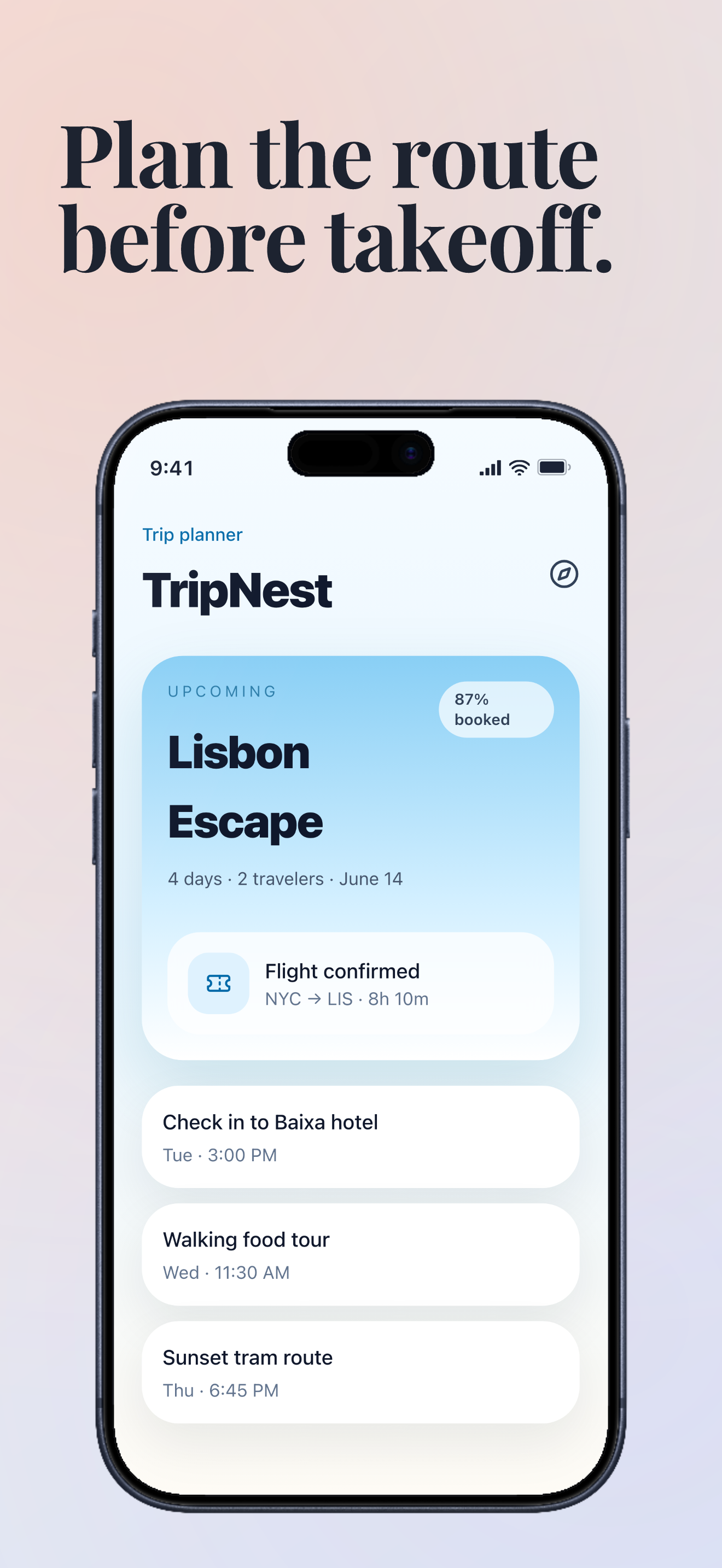
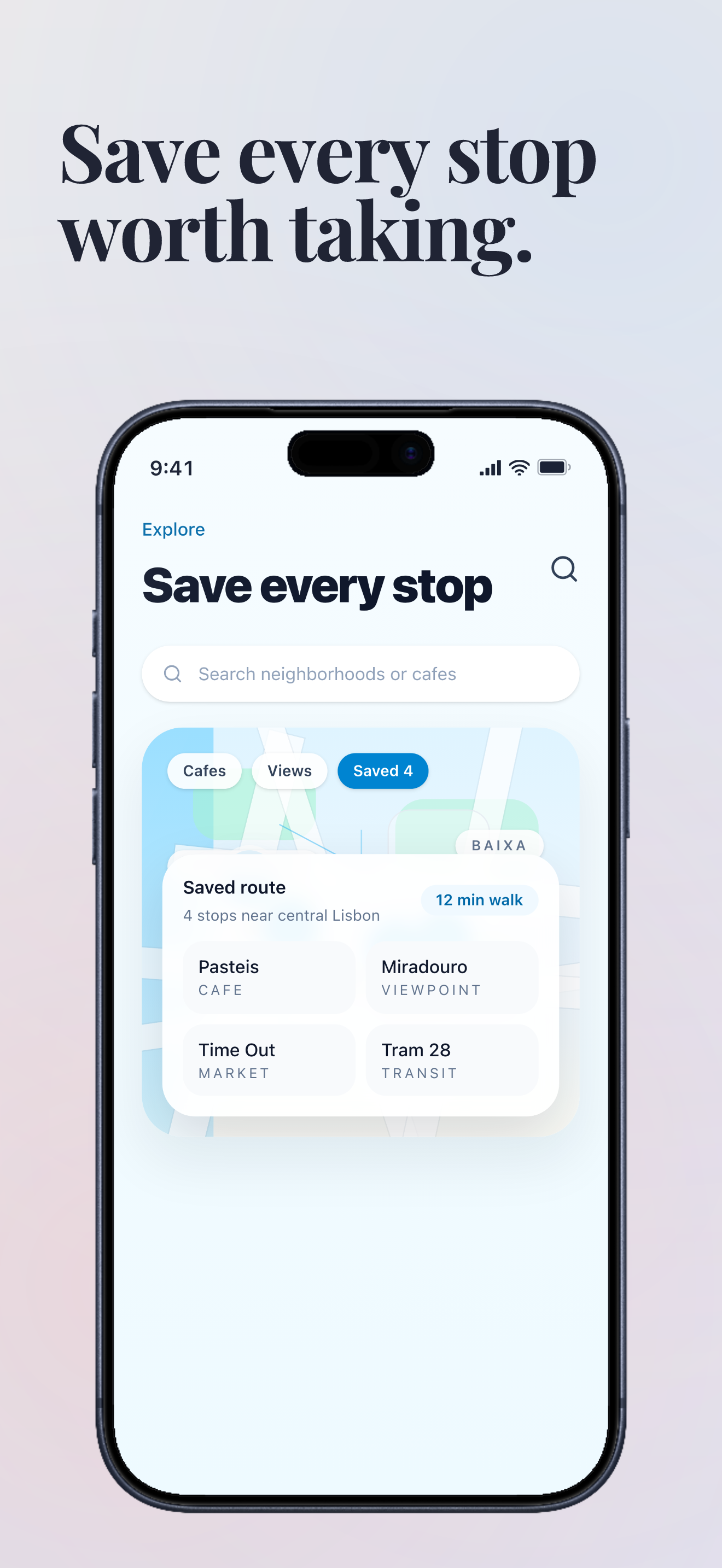
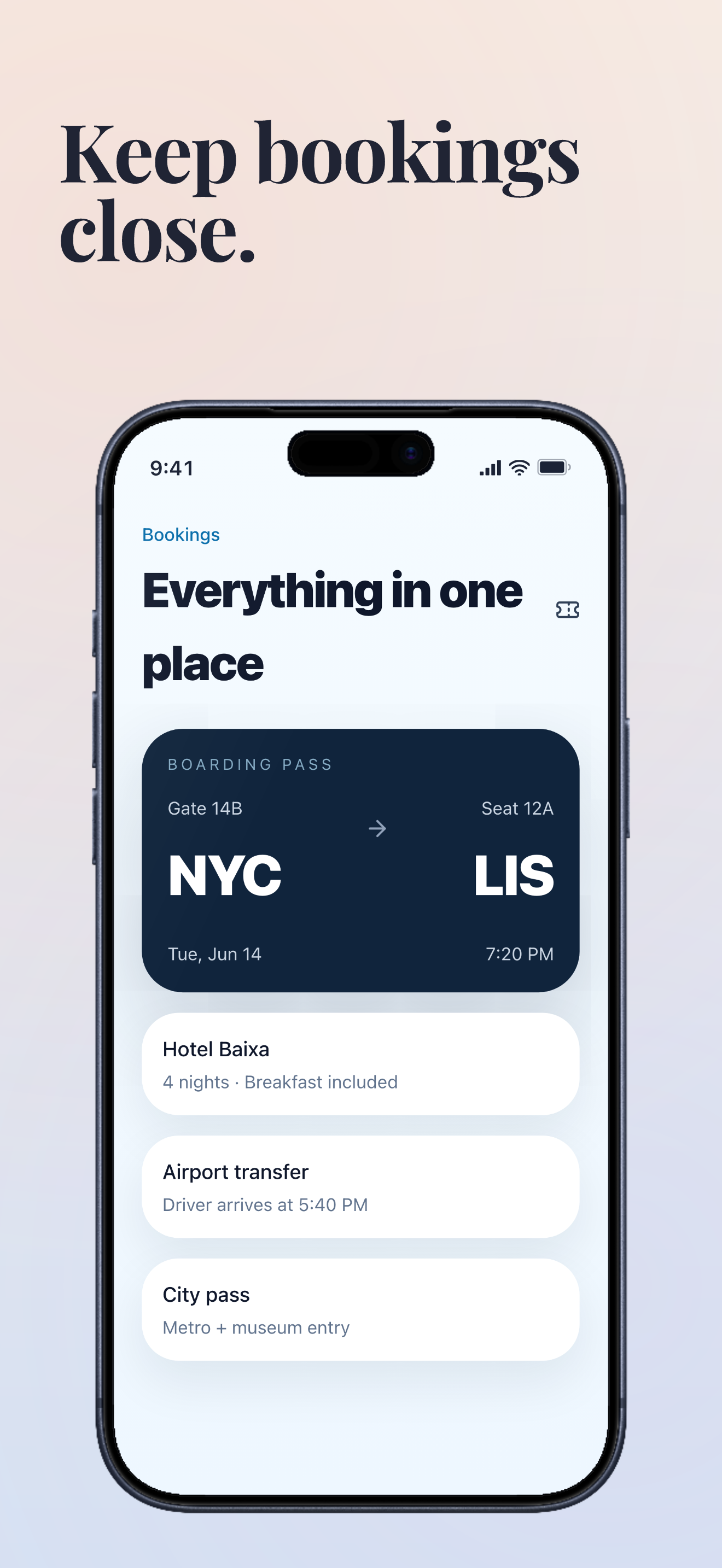
TripNest screenshots built with Launchscenes.

Example export set for a travel workflow, using fictional in-house demo screens.

Gradient template App Store screenshot demo showing TripNest itinerary planning.
Gradient template App Store screenshot demo showing TripNest saved map stops.
Gradient template App Store screenshot demo showing TripNest bookings.

What happens next

Upload up to ten PNG or JPG screenshots.
Launchscenes detects the device size and frames the layout for you.
Tune the copy, preview the layout, and download a watermark-free ZIP when you pay.

What this page helps you decide

Use the notes below to choose the right screenshot size, template, and export path for an iPhone App Store listing.

Gradient template use cases

Warm gradients built for launch announcements and feature reveals. Use this preset when the visual tone matches the product and the screenshot needs a clear caption system, not just decoration.

  • Feature launches, travel, food, commerce, and lifestyle apps that benefit from warmth.
  • Screens where a simple background lift makes a plain UI feel more polished.
  • Launch announcements where the first screenshot needs more color without losing readability.

Gradient visual pattern and examples

Place the iPhone over a warm color field, keep the caption high-contrast, and let the gradient support the app screen instead of competing with it.

  • Caption example: Book the moment before it sells out.
  • Caption example: See the change before you tap confirm.
  • Caption example: Launch the feature your users asked for.

When not to use Gradient

Avoid Gradient when the product UI already has heavy color, small financial data, or a strict trust tone. Extra color can make dashboards and dense tables harder to scan.

  • Check caption contrast at mobile size, especially on orange or pink areas.
  • Use a source screenshot with a clear focal point so the gradient does not become the only visual idea.
  • Keep supporting text restrained; the background already adds visual activity.

Open the builder for this setup.

The full builder opens on its own dedicated page so editing and export stay focused. Template and device recommendations from this guide are applied when supported.

Template
gradient
Device
Auto or detected
Open in builder

FAQ

Which apps fit the Gradient template best?

Feature launches, travel, food, commerce, and lifestyle apps that benefit from warmth.

Can I preload the Gradient template in the generator?

Yes. This page opens the generator with the matching public template preset selected so you can upload screenshots and inspect the result.

What should I check before a paid export?

Confirm the source screenshot is readable, captions are specific, the selected iPhone frame fits the upload, and the export path matches the current free, one-time Pro, or Monthly Pro policy.

More screenshot guides worth opening

Compare device sizes, browse styles, or look through category examples, then jump straight back into the dedicated builder when you are ready.