
LaunchscenesCreate screenshots free

Productivity App Screenshot Design

Use these productivity screenshot patterns to make complex flows feel focused, fast, and easy to trust.

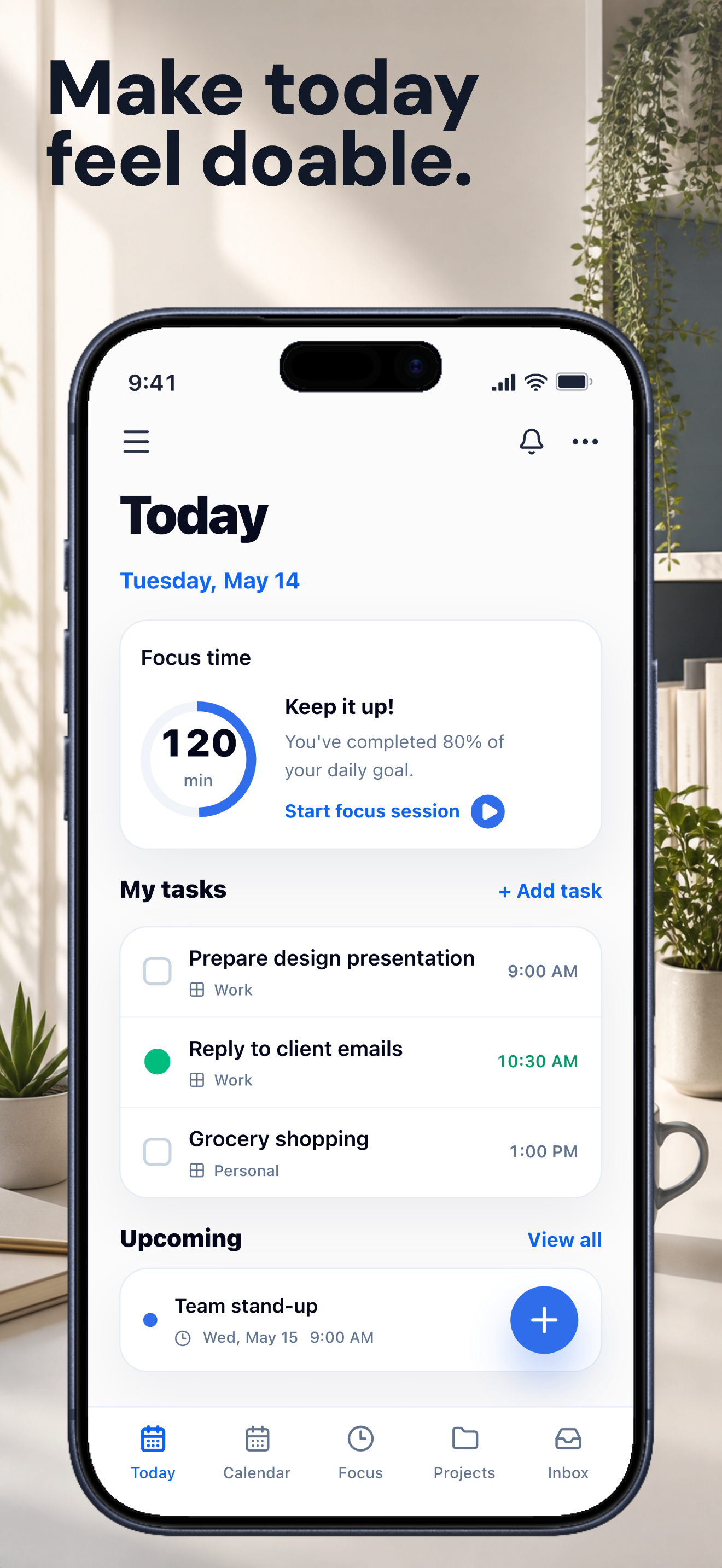
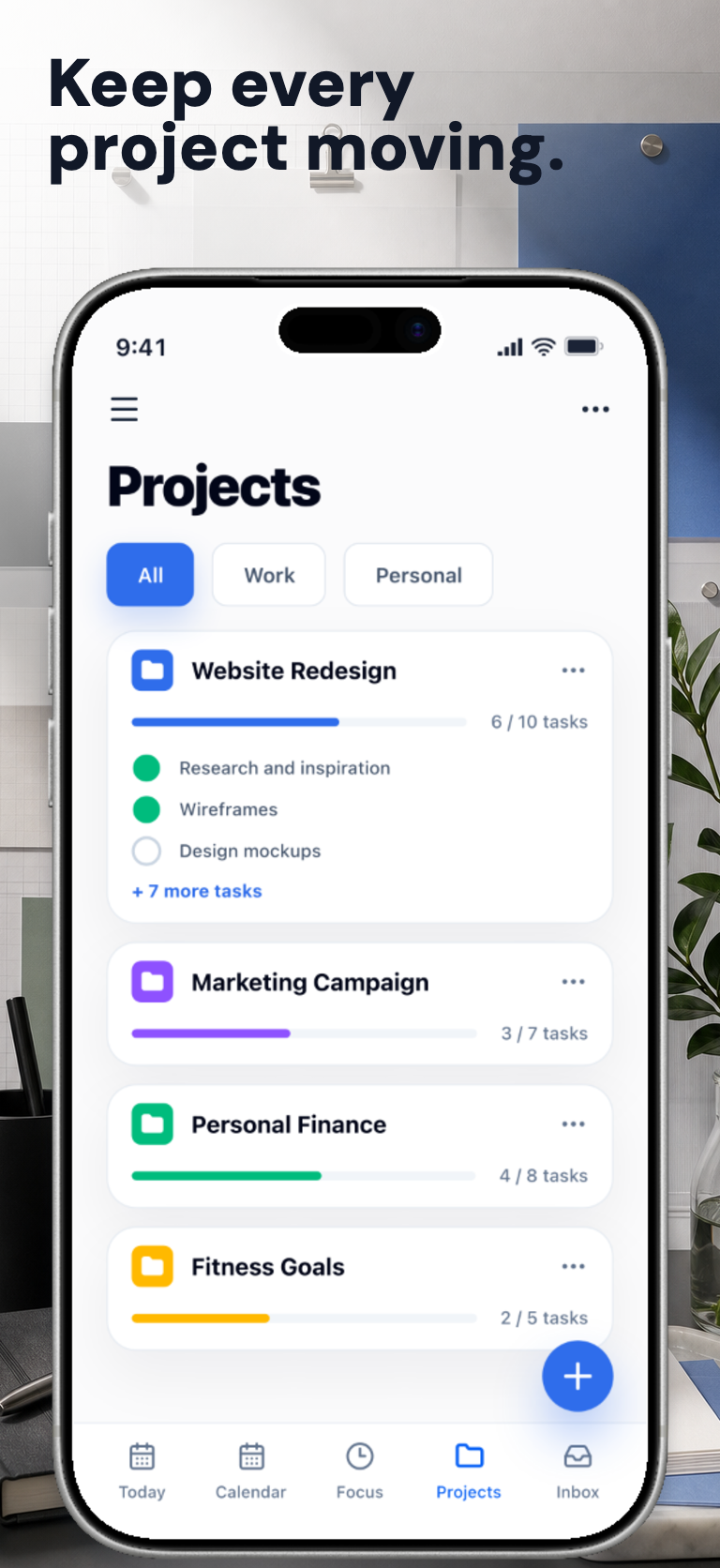
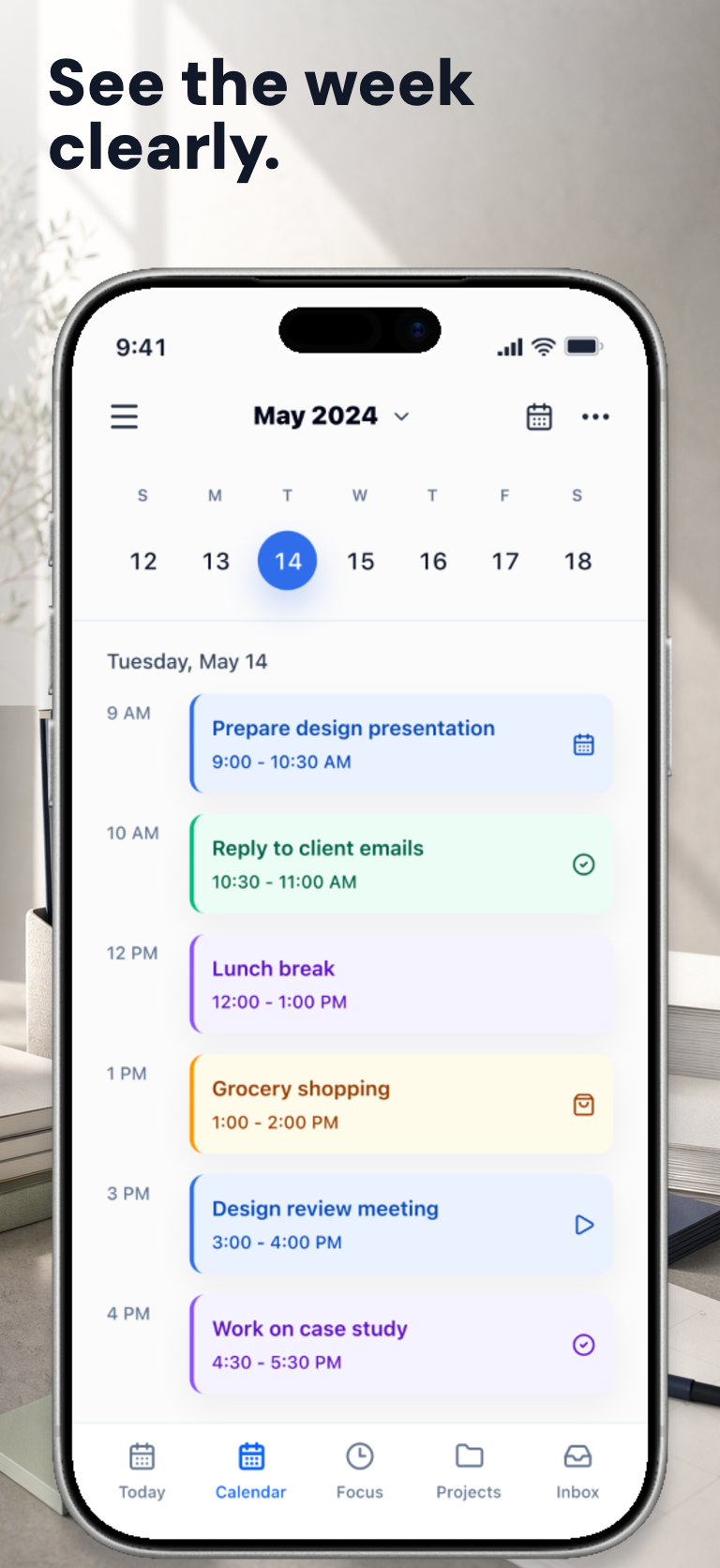
FocusDock screenshots built with Launchscenes.

Example export set for a productivity workflow, using fictional in-house demo screens.

FocusDock App Store screenshot showing the Today dashboard, focus time, and daily tasks.
FocusDock App Store screenshot showing project progress and grouped tasks.
FocusDock App Store screenshot showing a daily calendar schedule.

What happens next

Upload up to ten PNG or JPG screenshots.
Launchscenes detects the device size and frames the layout for you.
Tune the copy, preview the layout, and download a watermark-free ZIP when you pay.

What this page helps you decide

Use the notes below to choose the right screenshot size, template, and export path for an iPhone App Store listing.

Productivity screenshot story arc

Productivity screenshots should make complex workflows feel instant and calm. The strongest productivity screenshot set should read as a short sequence rather than isolated feature cards.

  • Frame 1: name the workflow problem the user wants solved.
  • Frame 2: show how tasks, notes, schedules, or projects move through the app.
  • Frame 3: prove the payoff with saved time, fewer tabs, or clearer priorities.

Productivity caption examples

For productivity apps, use caption drafts like these to keep the message concrete before choosing a visual preset. The final copy should match what the app screen can actually prove.

  • Plan the work before it scatters.
  • Turn notes into next steps.
  • See what needs attention now.

Productivity quality checks

Productivity is a useful starting preset for this category, but it should support the real app UI instead of forcing every screen into the same look.

  • Show a real workflow state instead of an empty dashboard.
  • Break dense processes into multiple screenshots.
  • Use captions that describe outcomes, not internal feature names.

Productivity mistakes to avoid

These productivity screenshot issues are most likely to make the page feel generic or reduce trust after someone opens your App Store listing.

  • Making every screenshot a list view with a different title.
  • Using small UI text as the only proof of value.
  • Writing vague speed claims without showing the workflow that creates speed.

Open the builder for this setup.

The full builder opens on its own dedicated page so editing and export stay focused. Template and device recommendations from this guide are applied when supported.

Template
productivity
Device
Auto or detected
Open in builder

FAQ

What should the first productivity screenshot say?

Plan the work before it scatters.

Which template should a productivity app start with?

Start with Productivity, then adjust captions and crop around the real iPhone screenshot.

Can I adapt these ideas across different iPhone sizes?

Yes. Keep the story structure stable, then inspect each selected iPhone output because smaller screens can make captions and UI labels harder to read.

More screenshot guides worth opening

Compare device sizes, browse styles, or look through category examples, then jump straight back into the dedicated builder when you are ready.