
LaunchscenesCreate screenshots free

Education App Store Screenshot Examples

Education apps convert better when screenshots promise progress. Use this page to shape that story quickly.

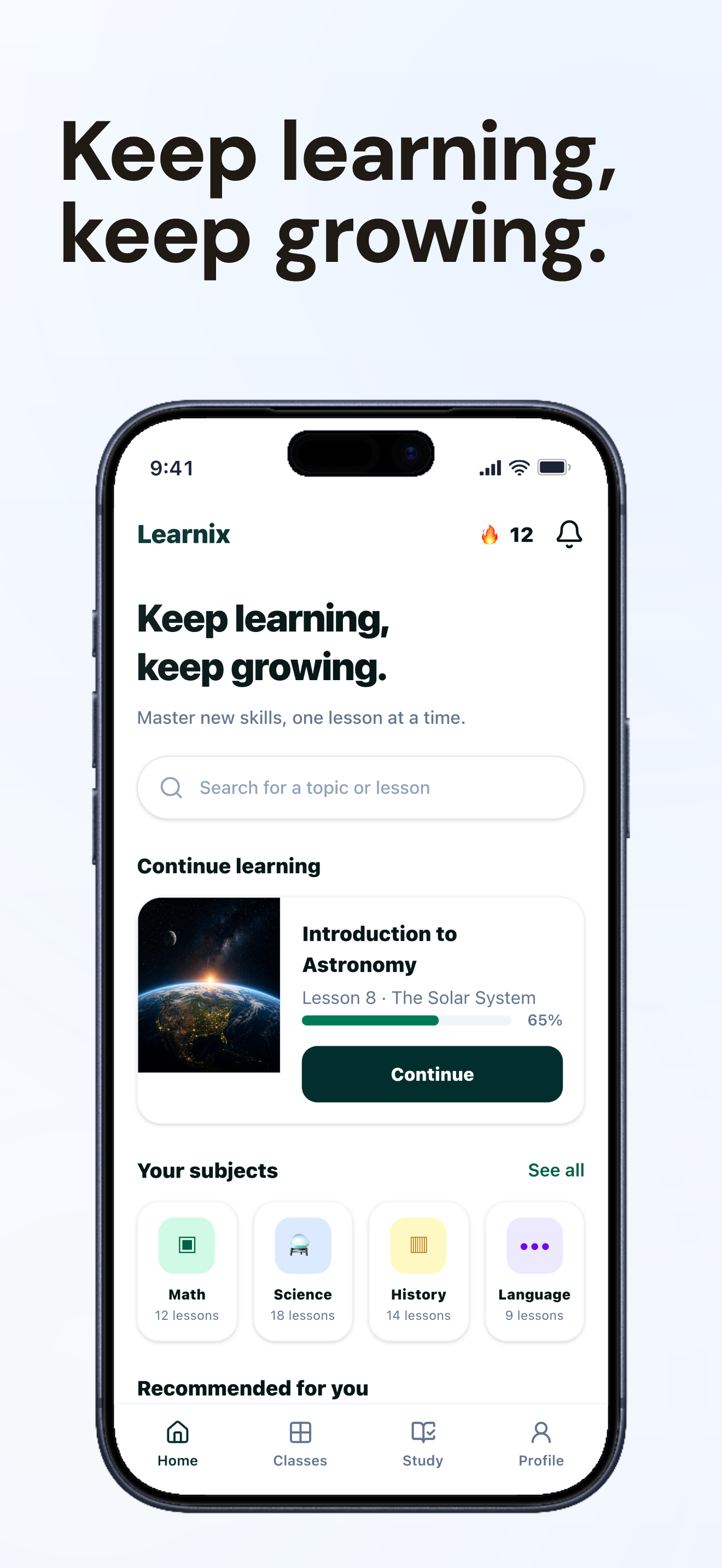
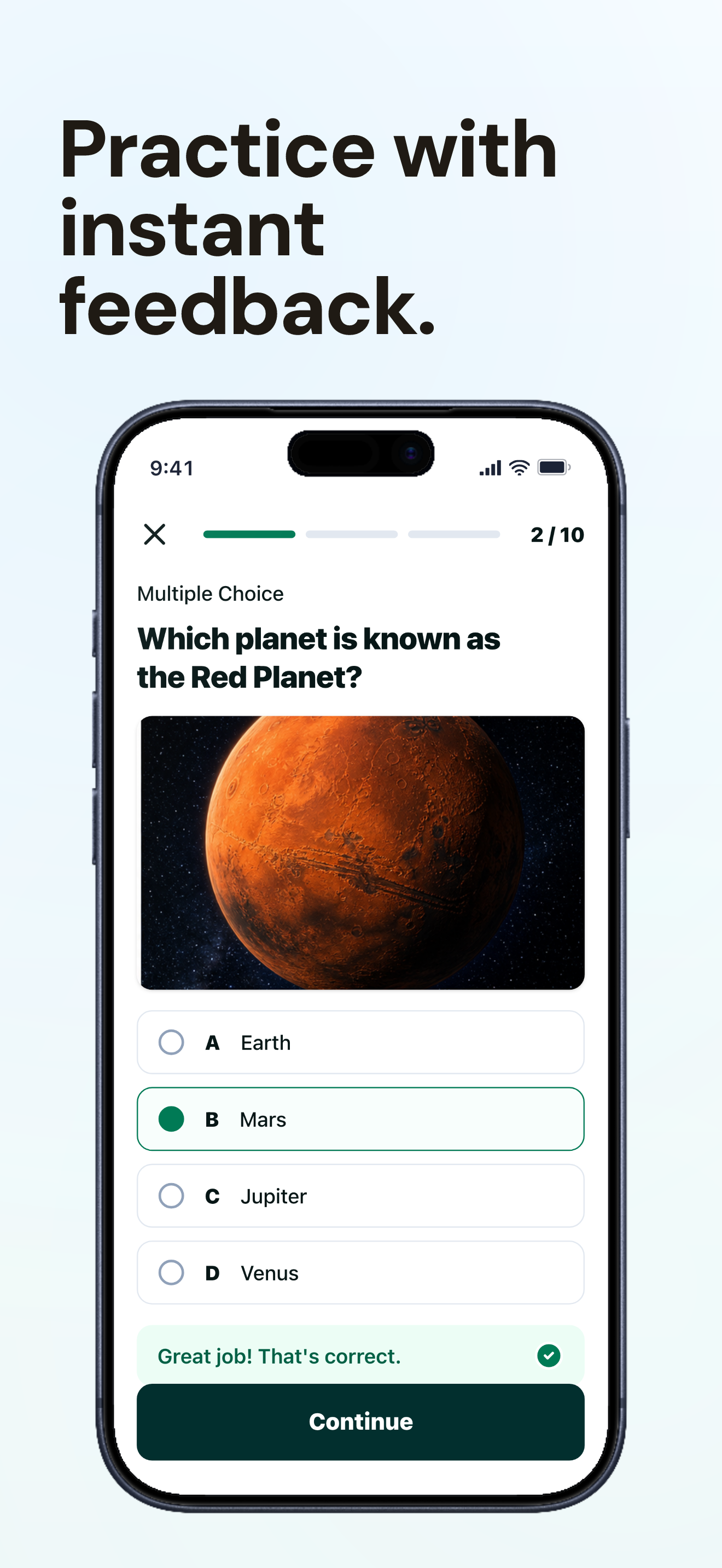
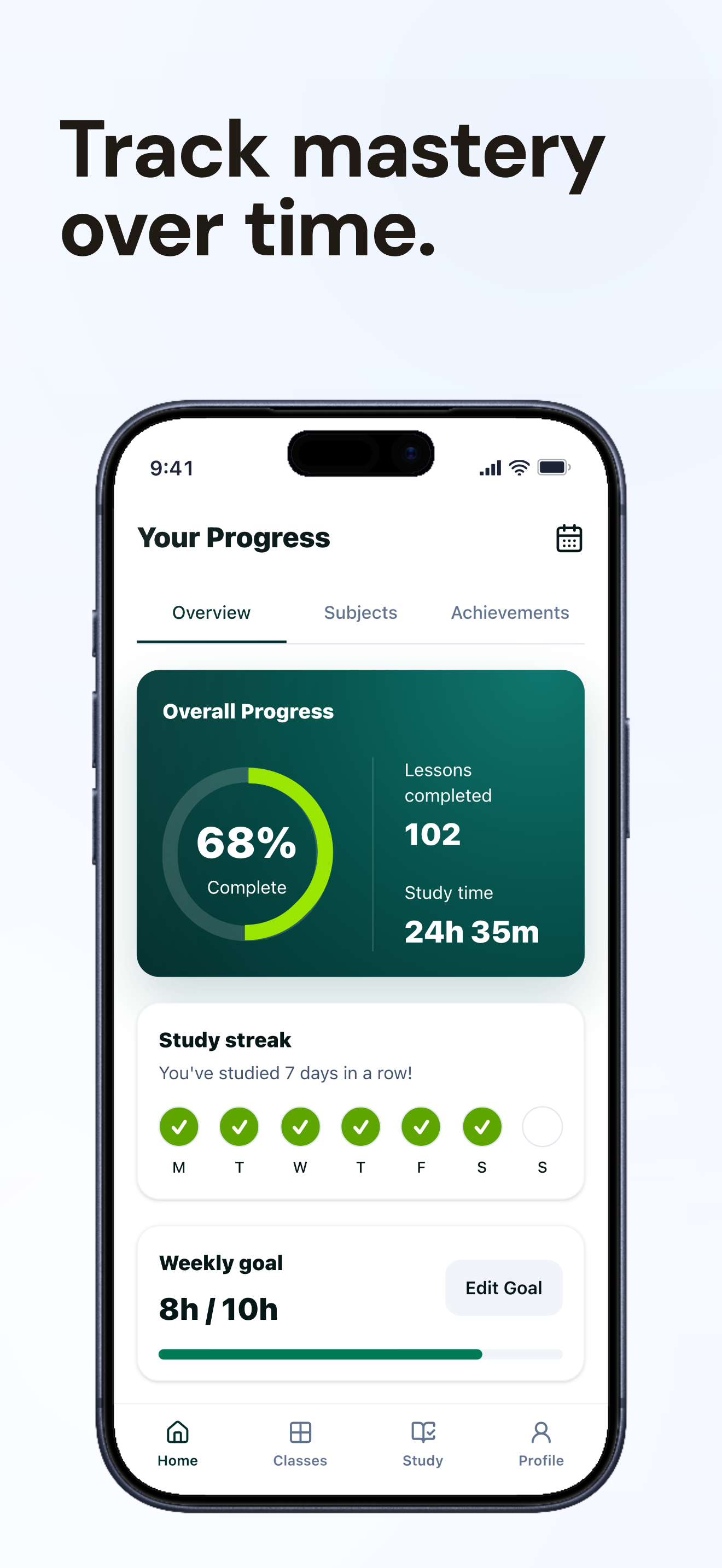
Learnix screenshots built with Launchscenes.

Example export set for an education workflow, using fictional in-house demo screens.

Education App Store screenshot demo showing Learnix learning home.
Education App Store screenshot demo showing Learnix astronomy quiz.
Education App Store screenshot demo showing Learnix mastery progress.

What happens next

Upload up to ten PNG or JPG screenshots.
Launchscenes detects the device size and frames the layout for you.
Tune the copy, preview the layout, and download a watermark-free ZIP when you pay.

What this page helps you decide

Use the notes below to choose the right screenshot size, template, and export path for an iPhone App Store listing.

Education screenshot story arc

Education screenshots work when the outcome feels achievable and structured. The strongest education screenshot set should read as a short sequence rather than isolated feature cards.

  • Frame 1: promise a learning outcome users can imagine reaching.
  • Frame 2: show the lesson, quiz, practice, or feedback loop.
  • Frame 3: prove progress with streaks, checkpoints, scores, or next-step guidance.

Education caption examples

For education apps, use caption drafts like these to keep the message concrete before choosing a visual preset. The final copy should match what the app screen can actually prove.

  • Learn the next concept without guessing.
  • Practice until progress is visible.
  • Know what to study next.

Education quality checks

Startup is a useful starting preset for this category, but it should support the real app UI instead of forcing every screen into the same look.

  • Show beginner confidence before advanced detail.
  • Keep lesson text large enough to read on mobile.
  • Use progress proof without implying guaranteed learning outcomes.

Education mistakes to avoid

These education screenshot issues are most likely to make the page feel generic or reduce trust after someone opens your App Store listing.

  • Listing curriculum instead of showing the learning experience.
  • Starting with a dense lesson screen that feels intimidating.
  • Using captions that promise mastery without visible proof.

Open the builder for this setup.

The full builder opens on its own dedicated page so editing and export stay focused. Template and device recommendations from this guide are applied when supported.

Template
startup
Device
Auto or detected
Open in builder

FAQ

What should the first education screenshot say?

Learn the next concept without guessing.

Which template should an education app start with?

Start with Startup, then adjust captions and crop around the real iPhone screenshot.

Can I adapt these ideas across different iPhone sizes?

Yes. Keep the story structure stable, then inspect each selected iPhone output because smaller screens can make captions and UI labels harder to read.

More screenshot guides worth opening

Compare device sizes, browse styles, or look through category examples, then jump straight back into the dedicated builder when you are ready.